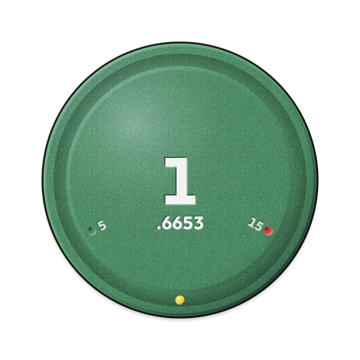
Connected · Ready
The green button means the camera is connected and not recording. Tap to start manual recording. To record automatically, leave GPS monitoring on and meet your configured speed and hold-time conditions.
GUIDE
Android main screen reference. The interface may differ by build.


The selected camera logo is displayed. Tap while connecting to switch brands.
Shows GPS reception. Tap to turn speed monitoring on or off while keeping the camera connected.
Connection and recording events are logged in English, newest first.
Android: tap to send mOmentiOn to the background. When overlay permission and usage conditions allow it, a floating recording button appears over other apps so you can control recording.
iOS: tap to open your selected map app. Long-press to choose an installed map app. This does not show an Android-style floating recording button over other apps.
Green indicates the camera is connected and ready to record; red indicates recording in progress. Manual recording is also supported.
The number beside the red dot is the configured recording start speed; the number beside the green dot is the configured recording stop speed.
The yellow dot follows the phone’s gravity direction.
Start or retry a connection. Tap again while a connection task is in progress to cancel.
End GPS monitoring and camera connections, and attempt to stop recordings started in the app. See the Quit button card below for platform differences.
Configure camera connections, recording thresholds, and app behavior.
Review, compare, and share saved rides.
Open saved logs to inspect past activity.
The green button means the camera is connected and not recording. Tap to start manual recording. To record automatically, leave GPS monitoring on and meet your configured speed and hold-time conditions.
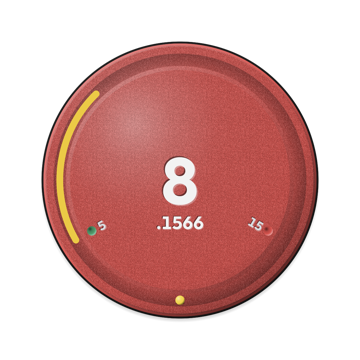
Red with speed digits means speed-triggered recording. Leave it running for automatic control, or tap to stop now. When automatic recording conditions are met again, recording can restart.
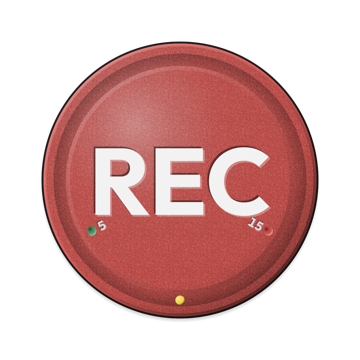
REC means recording was started manually in the app. Tap to stop. Falling below the automatic stop speed does not stop this recording.
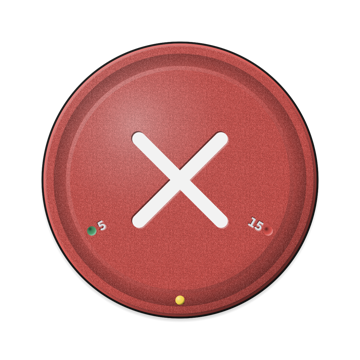
X means recording was started using the camera’s own button. Stop it on the camera. The app’s main button is disabled; X does not mean a connection error.
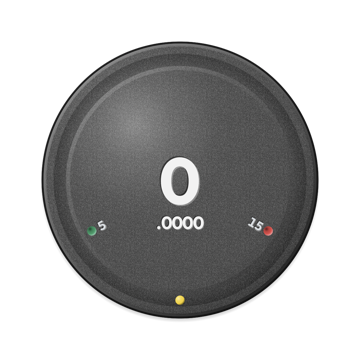
Gray means there is no camera connection and no active recording state. Turn the camera on and use the Connect button below. If a connection is already in progress, wait for it to finish.
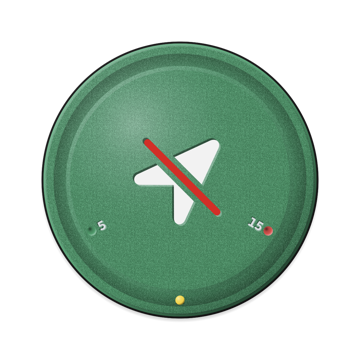
The slashed arrow means GPS monitoring is off on iOS. Tap the top-right GPS control to enable automatic recording. With the camera connected, you can still tap the main button to record manually. Android uses a location pin with an X.
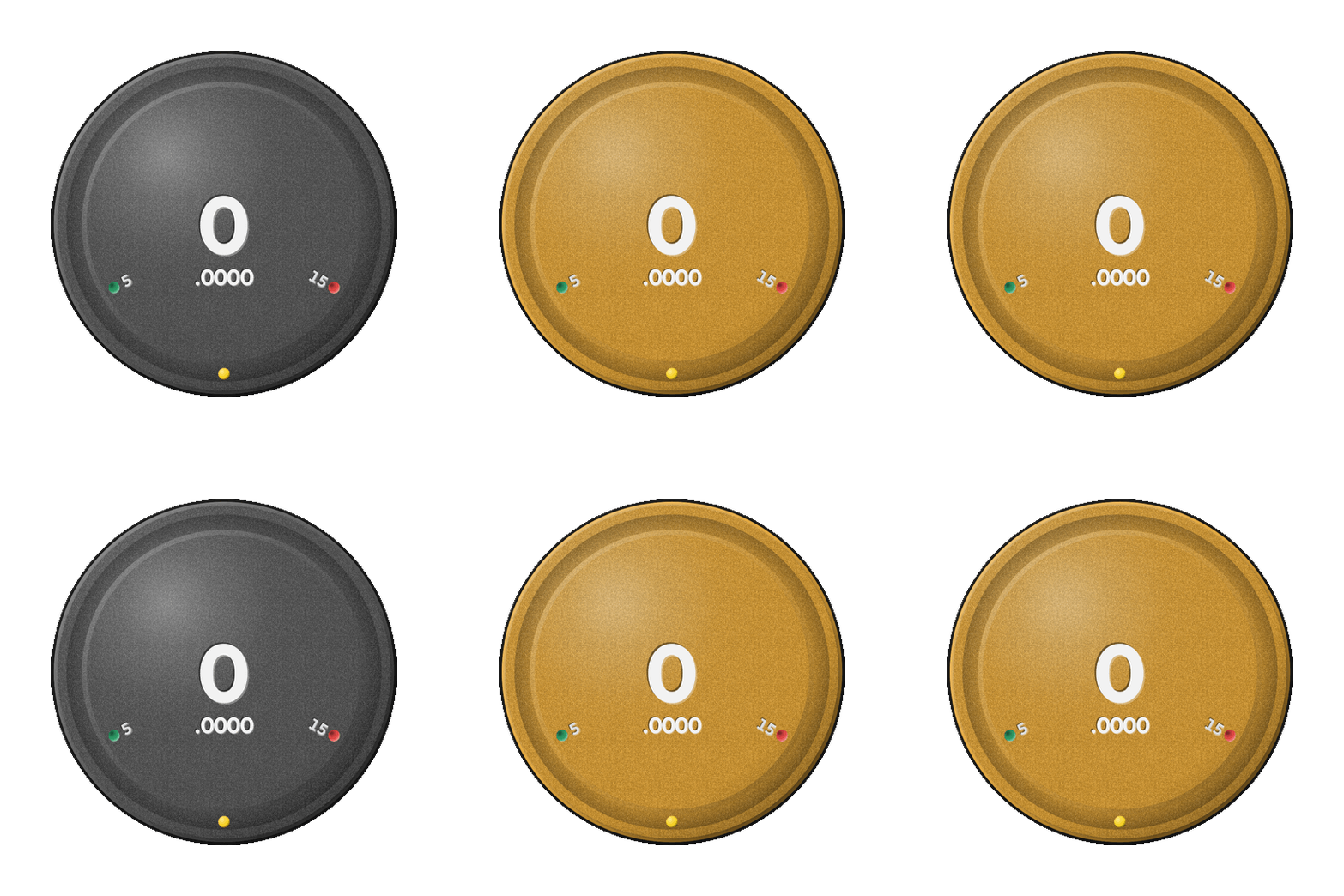
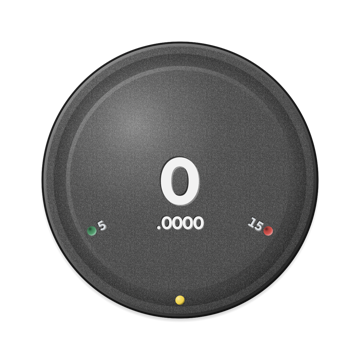
Amber and gray alternate when the camera is unresponsive. Check camera power and wireless connections; restart the camera if needed. Use the Connect button to cancel an ongoing retry, then press it again to try connecting.
Wait while a recording command is being processed: the button ignores taps and does not show a separate processing icon. Android also blocks taps until camera controls are ready. A recording state may remain red during recovery; check the connection status too.
Android only: a Bluetooth symbol with an X means Bluetooth is off while the camera is disconnected. Turn on Bluetooth and try connecting again. It replaces the speed, REC or GPS-off symbol, but not the camera-button X.

With the camera disconnected and no retry in progress, tap to connect. Turn the camera on first and approve any pairing or Wi-Fi prompt.

Wait to continue connecting or retrying, or tap the stop icon to cancel. Wait for the camera connection and controls to be ready before recording.

Tap if you need to reconnect the camera. A user-requested reconnect attempts to stop recording started in the app before reconnecting; recording started on the camera is left running. For normal recording, use the main button instead.

When a failure is shown and no connection or retry is running, the retry icon appears. Follow the error guidance, fix the cause, then tap to try again.

Tap the red power button when you want to finish using the app. It stops GPS monitoring and camera connection work, and attempts to stop recording started manually or automatically in the app. Recording started on the camera itself is left running; stop that recording on the camera.
iOS asks you to confirm quitting. Android begins shutdown when you tap. If the camera does not respond, check it directly rather than assuming recording has stopped.