
Speed-Triggered Recording
Start and stop at your set speeds.
mOmentiOn - Action Cam Remote
Auto Record by Speed & GPS Log
mOmentiOn is an Android and iOS app for speed-triggered recording on compatible Insta360 and DJI cameras over Bluetooth, with GPX route logging, heatmaps and ride comparisons.
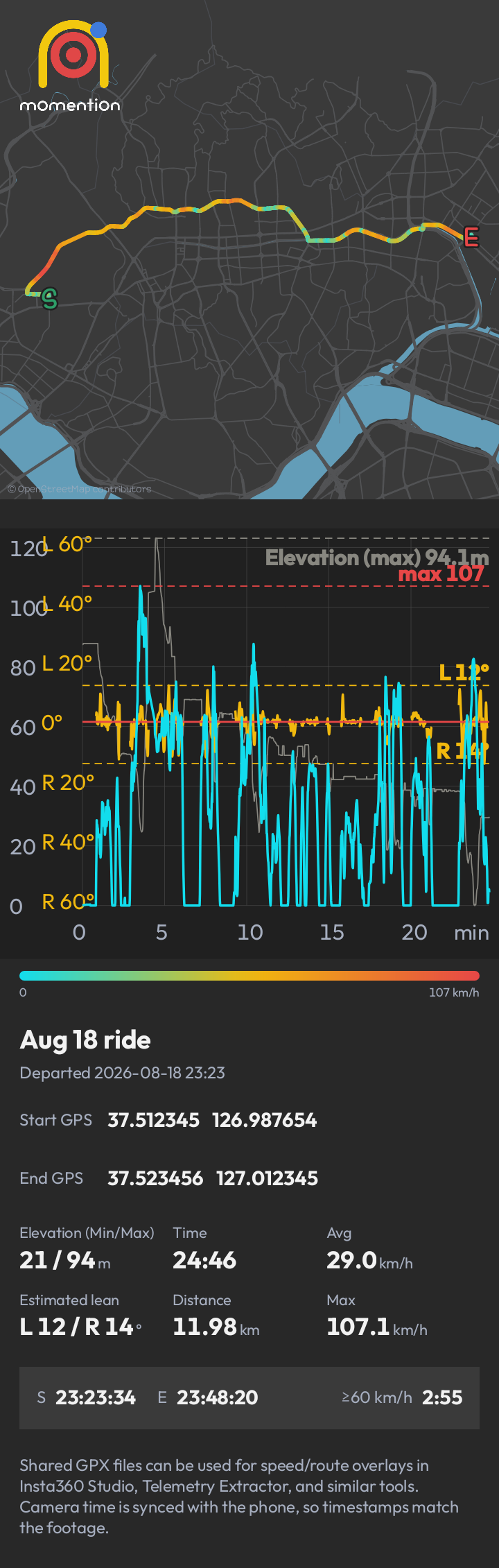
Background GPS, GPX import and export, speed heatmaps, speed and estimated lean angle and elevation graphs, ride comparisons, and image and video sharing.
Free: automatic recording for 5 trial rides, then up to 4 manual recordings per day, with ads. Pro is a one-time purchase with no subscription that removes camera recording limits and ads.
The Wear OS companion shows speed and recording status and sends controls through your paired Android phone. The phone app must be running and connected to the camera.
Features vary by camera model and firmware. GPS accuracy varies; estimated lean angle is for reference. Set up while safely stationary and do not operate your phone while riding.
Which cameras can I control?
Compatible Insta360 360 and DJI Osmo cameras connect over Bluetooth. Features vary by model and firmware.
Can I use a watch without my phone?
Apple Watch and Wear OS work with the paired phone app. Camera recording control requires the phone to be connected to the camera.
Are my source GPX files preserved?
Source GPX files are preserved. Restoring a route creates a separate copy.
Is navigation guaranteed?
mOmentiOn provides GPX logging and ride review. GPS accuracy varies, and navigation is not guaranteed.

A Moment in Motion
Start and stop at your set speeds.
Bluetooth remote for compatible Insta360 360 and DJI Osmo cameras.
Save your route, speed and elevation.
Visualize routes and ride data.
Compare routes and data across rides.
Export routes, images and videos.
Brand selection and connection status.
GPS reception and automatic recording monitoring.
Connection and recording activity.
Android floating button; iOS map app.
Current speed, recording status and manual control.
Red: start. Green: stop.
The yellow dot shows phone tilt.
Connect, retry or cancel.
End GPS and connections; attempt to stop app recording.
Camera, recording conditions and app behavior.
Replay, compare and share records.
Review past activity.